How to Fix 400 Bad Request Errors: Simple Steps for Users
Encountering an "Error Code 400: Bad Request" can be a frustrating experience. You're trying to access a website, submit a form, or upload a file, and instead, you're met with a cryptic message indicating something went wrong. But don't despair! While these errors can feel like a roadblock, they are incredibly common and, in most cases, surprisingly easy to fix without requiring advanced technical skills.
This comprehensive guide is designed for everyday internet users, small business owners, and anyone who interacts with websites, online dashboards, or digital forms. We'll demystify the **Error Code 400**, explain its common causes, and walk you through a series of practical, step-by-step solutions to get you back on track quickly. We'll start with immediate fixes you can try and then delve deeper into understanding why these errors occur, empowering you with the knowledge to troubleshoot effectively.
Understanding the Error Code 400: What Does it Mean?
At its core, an **Error Code 400 Bad Request** means that the server (the computer hosting the website or application) couldn't understand the request your browser sent. Think of it like trying to order food at a restaurant, but your order is mumbled, incomplete, or uses jargon the waiter doesn't understand. The waiter (server) can't fulfill your request because it's "badly formed" or "malformed."
Every time you click a link, type a web address, submit data, or upload a file, your browser sends a specific request to the website's server. This request needs to adhere to a particular structure and set of rules (known as HTTP protocols). If any part of this request is missing, contains invalid characters, has incorrect syntax, or includes unexpected values, the server can't process it. Instead of moving forward, it rejects the request and sends back a "400 Bad Request" status code.
It's crucial to understand that the **Error Code 400** is typically a *client-side issue*. This means the problem usually lies with your browser, your device, your network connection, or the information you're sending, rather than with the website's server itself. In many scenarios, the server is functioning perfectly but simply cannot make sense of what it has received from your end. This type of error belongs to the 4xx family of HTTP status codes, all of which indicate problems originating from the client's request. For a deeper dive into the specifics of these client-side issues, you might find our article
Bad Request Explained: Unraveling Common Client-Side Causes particularly helpful.
Common Causes Behind the 400 Bad Request Error
While the error message itself is generic, the underlying causes of an **Error Code 400** are usually quite specific and often stem from a small set of recurring issues. Understanding these common culprits is the first step toward a quick resolution.
1. Malformed URL or Syntax Errors
One of the most frequent causes is a simple mistake in the web address (URL). This could include:
- Typos: A missing letter, an extra character, or incorrect capitalization.
- Special Characters: URLs aren't meant to contain certain special characters unless they are properly encoded. Copying and pasting URLs from other sources can sometimes introduce hidden or improperly encoded characters.
- Broken Query Strings: URLs often use query strings (e.g., `?item=value&id=123`) to pass data. If these are malformed, the server won't understand.
- Outdated Links: Sometimes, an old link might no longer conform to the server's current request processing standards.
Even a tiny, almost invisible character can lead the server to interpret the request as invalid.
2. Corrupted Browser Cache and Cookies
Your browser stores cached files (images, scripts, stylesheets) and cookies (small data files that store login information and site preferences) to speed up loading times and personalize your experience. However, this convenience can sometimes backfire:
- Outdated Data: If cached files or cookies become outdated or corrupted, they can interfere with new requests.
- Conflicting Information: When your browser sends a request with old, conflicting data from its cache, the server receives information it doesn't expect or can't process correctly, triggering a 400 error.
3. Interfering Browser Extensions
Many browser extensions enhance your online experience, but some can inadvertently cause problems. Extensions like ad blockers, VPNs, security tools, or even productivity apps might:
- Modify Requests: They can alter web requests before they're sent to the server.
- Block Data: They might block or strip away data (like specific headers or form fields) that the server requires for a valid request.
This manipulation, while often intended to be helpful, can sometimes lead to the server receiving an incomprehensible request.
4. Outdated or Corrupted DNS Cache
DNS (Domain Name System) translates human-readable website names (like `example.com`) into computer-readable IP addresses. Your device and network provider store a local DNS cache to speed up this translation.
- Stale Entries: If your local DNS cache holds outdated information for a website, your request might be routed incorrectly or incompletely.
- Network Issues: An unstable or misconfigured network connection can also affect how DNS requests are handled, leading to a 400 error.
5. Exceeding File Size or Request Limits
Websites and servers often have limits on the size of files you can upload or the overall length of a request.
- Large File Uploads: Trying to upload a file that exceeds the server's maximum allowed size can result in a 400 error.
- Complex Forms: Similarly, submitting a form with an unusually large amount of data might hit a server's request length limit.
Instead of a more specific "file too large" error, some servers simply return a generic 400 message.
6. Issues with Third-Party Integrations or APIs
For those managing websites or using complex online applications, a 400 error can sometimes arise from improperly structured data exchanged between different systems (APIs, embedded forms, third-party integrations). This is a more advanced scenario, but it still means the data being sent isn't what the receiving server expects.
Step-by-Step Solutions to Fix Error Code 400
Now that we understand the common causes, let's dive into the practical solutions. Try these steps in order, as they progress from the simplest and most common fixes to more involved troubleshooting.
1. Double-Check the URL for Errors
This is the quickest and often most effective fix.
- Manual Review: Carefully look at the URL in your browser's address bar. Check for typos, extra characters (especially at the end), or incorrect capitalization.
- Simplify: If the URL has a complex query string (the part after a `?`), try removing it or navigating to the site's homepage and finding the content from there.
- Retype: If you copied and pasted the URL, try manually typing it out to avoid hidden characters.
2. Clear Your Browser's Cache and Cookies
Outdated browser data is a very common culprit.
- Instructions (General):
- Chrome: Go to Settings > Privacy and security > Clear browsing data. Select "Cached images and files" and "Cookies and other site data." Choose "All time" for the time range.
- Firefox: Go to Options > Privacy & Security > Cookies and Site Data > Clear Data. Select both options.
- Edge: Go to Settings > Privacy, search, and services > Choose what to clear. Select "Cached images and files" and "Cookies and other site data."
- Restart: Close and reopen your browser after clearing.
3. Disable Browser Extensions
If the error persists, an extension might be interfering.
- Incognito/Private Mode: Most browsers disable extensions by default in Incognito or Private mode. Try accessing the page there. If it works, an extension is likely the cause.
- Disable One by One: If Incognito mode resolves the issue, go to your browser's extensions management page and disable them one by one, testing the website after each disable, until you find the problematic extension.
- Update Extensions: Sometimes, simply updating an outdated extension can resolve conflicts.
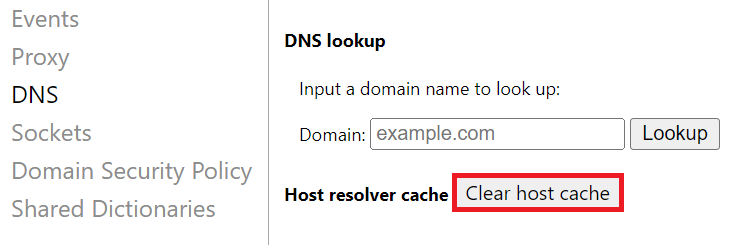
4. Flush Your DNS Cache
Your device's local DNS cache can become outdated.
- Windows: Open Command Prompt as administrator, type `ipconfig /flushdns` and press Enter.
- macOS: Open Terminal, type `sudo dscacheutil -flushcache; sudo killall -HUP mDNSResponder` and press Enter (you'll need to enter your password).
- Linux: The command varies depending on your distribution and DNS service (e.g., `sudo systemctl restart NetworkManager` or `sudo /etc/init.d/nscd restart`).
5. Try a Different Browser or Device
This diagnostic step helps determine if the issue is localized to your specific browser or device.
- Different Browser: If you're using Chrome, try Firefox, Edge, or Safari.
- Different Device: Try accessing the site from your smartphone, tablet, or another computer on the same network. If it works on another device, the problem is likely with your original device's configuration.
- Different Network: If possible, try connecting to a different Wi-Fi network or using mobile data. This helps rule out network-specific issues.
6. Check File Sizes or Form Submissions
If the error occurs during an upload or form submission:
- Reduce File Size: If uploading a file, try a smaller one or compress it.
- Simplify Form Data: If submitting a long form, try splitting it into smaller sections if possible, or reduce the amount of text in open fields.
7. Contact the Website Administrator or Support
If you've tried all the above steps and the **Error Code 400** persists, the problem might be on the server-side, or a specific configuration unique to that website.
- Provide Details: When contacting support, include as much information as possible: the exact URL you were trying to access, what you were doing when the error occurred, the browser and device you were using, and what troubleshooting steps you've already attempted.
For more comprehensive solutions and troubleshooting tips that apply to a wide range of websites, consider reading our detailed guide on
Resolve 400 Bad Request Errors: Quick Solutions for Any Website.
Proactive Measures: Preventing Future 400 Errors
While troubleshooting is essential, adopting a few best practices can help minimize your encounters with the **Error Code 400**:
- Keep Browser Updated: Regularly update your web browser to ensure you have the latest features, security patches, and bug fixes that can prevent request-related issues.
- Be Mindful of URLs: When copying URLs, be cautious of their source. If possible, navigate to pages naturally rather than relying solely on copied links, especially if they look unusually long or contain many strange characters.
- Regularly Clear Cache: Make it a habit to clear your browser's cache and cookies every few weeks or months, or if you notice any unusual behavior.
- Vet Extensions: Be selective about the browser extensions you install. Only use reputable ones and periodically review your installed extensions, disabling or removing any you no longer need or suspect might be causing issues.
Conclusion
The **Error Code 400 Bad Request** is a common hitch in our digital lives, often appearing when we least expect it. While it signifies that the server couldn't understand your request, the good news is that the solution usually lies within your control. By systematically checking your URL, clearing browser data, managing extensions, and ensuring your network configurations are sound, you can resolve most instances of this frustrating error. Remember these simple steps, and you'll be well-equipped to tackle the **Error Code 400** and get back to your online tasks with minimal disruption.